

Picture this: you're signing up for hosting for your business website, and the plan description says “Free SSL,” “TLS 1.3 compatible,” “HTTPS included.” Three different acronyms on the same line, and no one explains whether they're three different things, whether one replaces another or whether you're missing one. You ask a friend who's “good with computers,” and they tell you: “It's all the same thing, it's the little padlock.”
Your friend isn't entirely wrong, but they're not entirely right either. SSL, TLS and HTTPS are closely related, but each one names a different piece. Understanding the difference helps you read what you're being offered more clearly, ask your provider the right questions and know whether your website is properly protected in 2026.
The short answer
- SSL was the first technology for encrypting the connection between a browser and a website. It has since been retired because it's no longer secure.
- TLS is its successor: the technology that actually encrypts connections today.
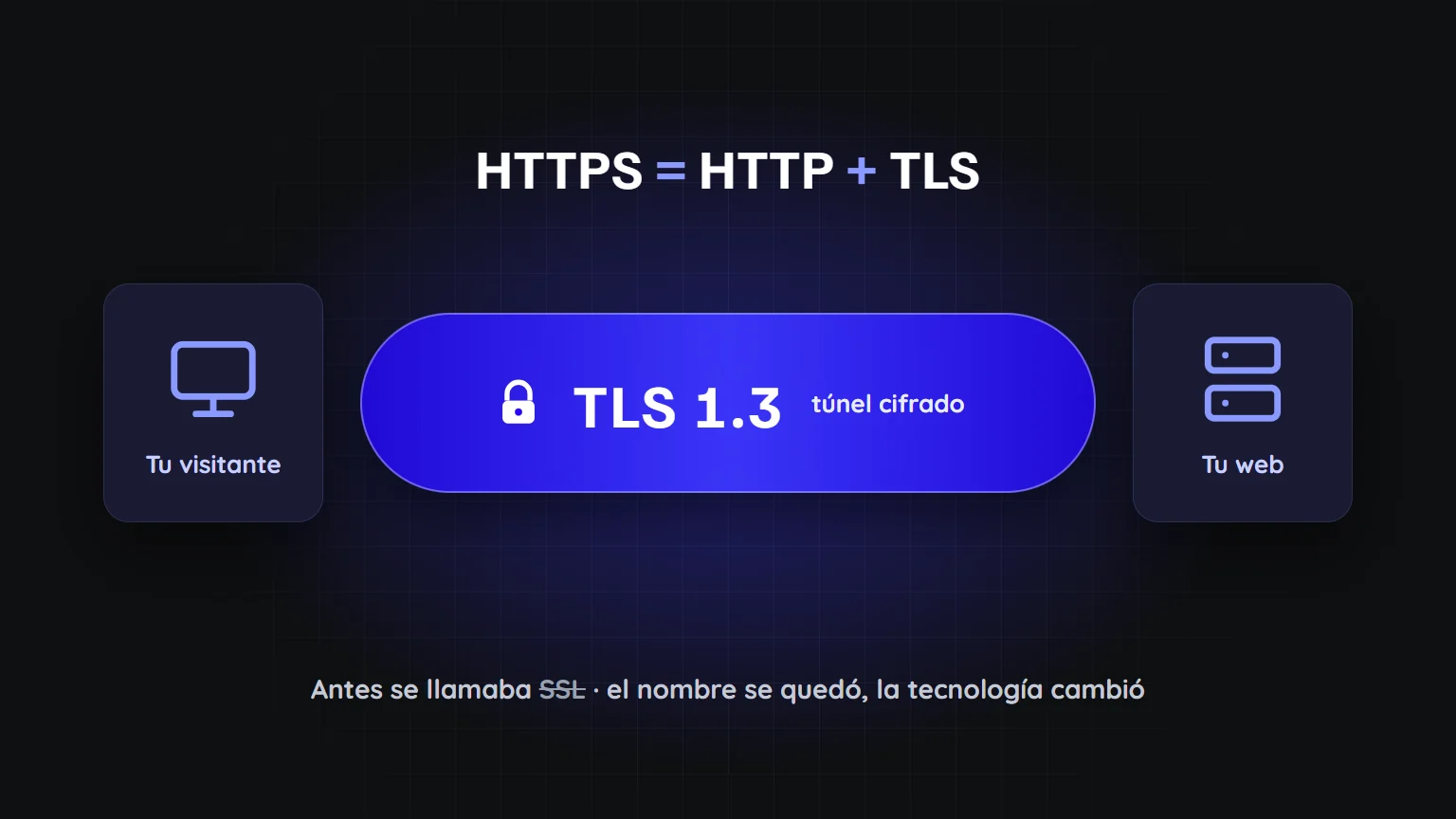
- HTTPS is the result you see: the normal way of loading a website (HTTP) running inside a connection protected by TLS.
As a formula: HTTPS = HTTP + TLS. And when someone sells you an “SSL certificate,” they're really selling you a certificate that's used with TLS. The old name simply stuck out of habit.
If you're still not sure what the certificate is or what the browser padlock means, we suggest starting with our guide on what an SSL certificate is, then coming back here.
First, what is HTTP?
HTTP is the language your browser and a website use to understand each other. When you type an address, the browser asks the server for the page using HTTP, and the server answers in the same language. It works very well, but it has a built-in problem: everything travels as plain, readable text. Anyone who can see the traffic along the way, for example on a public Wi-Fi network, could read what's being sent.
To solve that, the idea was born to put that conversation inside an encrypted channel. That's where SSL and, later, TLS come in.
SSL: the pioneer that has already retired
SSL (Secure Sockets Layer) was created by Netscape in the mid-1990s, when the first online purchases were starting to happen. Its most widely used version, SSL 3.0, came out in 1996 and protected the web for years.
Over time, serious flaws were found in its design, and in 2015 it was officially declared obsolete. Today no modern browser accepts SSL connections. If a provider tells you your website “uses SSL,” what they most likely mean is that it has a certificate installed and runs on TLS, which is exactly how it should be.
TLS: what actually protects your website today
TLS (Transport Layer Security) was born in 1999 as the evolution of SSL. It has gone through several versions, and it's useful to know which ones are still current:
| Version | Year | Status today |
|---|---|---|
| SSL 2.0 and 3.0 | 1995 and 1996 | Retired. Should not be used. |
| TLS 1.0 | 1999 | Retired in 2021. |
| TLS 1.1 | 2006 | Retired in 2021. |
| TLS 1.2 | 2008 | Current and secure if configured correctly. |
| TLS 1.3 | 2018 | The newest: faster and more secure. |
For a business website in 2026, the sensible setup is for the server to accept TLS 1.2 and TLS 1.3, and nothing older. Besides being more secure, TLS 1.3 sets up the connection in fewer steps, which helps the website load a little faster, something you notice most on mobile data.
HTTPS: what you see in the browser bar
HTTPS isn't a separate technology; it's the two previous ones combined: your website still speaks HTTP, but it does so inside the encrypted channel that TLS creates. That's why the address changes from http:// to https://, and why the browser shows the padlock (or, in Chrome, a settings-style icon) instead of the “Not secure” warning.
A simple way to see it: HTTP is the letter, TLS is the sealed envelope, and HTTPS is the letter traveling inside the envelope.
How a secure connection is set up, step by step
Every time someone visits a website with https, the browser and the server go through a kind of greeting. It happens in milliseconds, but it's worth understanding:
- The browser says hello. It tells the server which TLS versions and encryption methods it understands.
- The server replies and shows its certificate. It picks the best option they both support and presents its certificate, like someone showing their ID.
- The browser checks that certificate. It confirms that it's still valid, that it matches that address and that it was issued by a trusted authority.
- They agree on a secret key. With that key, which only the two of them know, everything sent from that point on is encrypted.
If something goes wrong in step 3, for example because the certificate expired or doesn't match the domain, the browser stops everything and shows a warning screen before loading the page.
Why does everyone still say “SSL certificate”?
Out of habit, and because of marketing. “SSL” was the term that caught on in the early years of the web, and when TLS arrived, providers kept using the name people already knew. Today you'll see “SSL certificate,” “SSL/TLS certificate” or “TLS certificate,” and in practice they all refer to the same file that makes https possible.
What matters isn't the name your provider uses, but that your server doesn't accept old versions and that the certificate renews automatically.
What to check on your website today
You don't need to log in to the server to run a basic check. This list will help you talk with your hosting provider or whoever maintains your site:
- That your whole website loads with https, including the versions with and without “www,” and that http always redirects to https.
- That the server accepts only TLS 1.2 and 1.3. There are free online tools that check this when you type in your domain, like the SSL Labs test.
- That certificate renewal is automatic. Since March 2026, public certificates last no more than 200 days, and that limit will keep dropping over the next few years.
- That there's no mixed content: images, videos or files that still load over http inside https pages.
- That HSTS is enabled, an instruction that tells the browser your website should only open with https. Ask your provider to turn it on once everything above is in order.
If your website runs on WordPress, these checks fit right into the routine we suggest in our guide to keeping WordPress secure and fast.
SSL, TLS and HTTPS side by side
| SSL | TLS | HTTPS | |
|---|---|---|---|
| What it is | The original encryption technology | Today's encryption technology | HTTP running over TLS |
| Is it used today? | No, it's retired | Yes (versions 1.2 and 1.3) | Yes, across almost the entire web |
| Where you see it | In the certificate's product name | In the server configuration | In the browser bar (https://) |
| What to ask for | Nothing: it shouldn't be enabled | TLS 1.2 and 1.3, no old versions | The whole website on https, with redirects |
Frequently asked questions
If I buy an “SSL certificate,” does my website use SSL or TLS?
It uses TLS. The certificate is the same kind of file; what determines the version is how the server is configured. An up-to-date server will use TLS 1.2 or 1.3 even if the product is sold under the name “SSL.”
Does HTTPS make my website slower?
In practice, no. With TLS 1.3 and a modern server, the difference is minimal, and https also lets you use faster versions of the web protocol that only work over secure connections. A website without https usually loses more to visitors' distrust than to any difference in speed.
What if my server still accepts TLS 1.0 or 1.1?
Today's browsers no longer connect using those versions, so they shouldn't be in use, but leaving them enabled on the server opens more doors to attacks. Ask your provider to disable them and leave only TLS 1.2 and 1.3.
Can I have https without paying anything?
Yes. Organizations like Let’s Encrypt issue free certificates, and most hosting providers install and renew them automatically. For a typical business website, a properly configured free certificate protects just as well as a paid one of the same type.
Does every page on my website need its own certificate?
No. One certificate covers the entire domain, with all its pages. What you should check is that it includes the versions with and without “www,” plus any subdomains you use, for example store.yourbusiness.com.
Fewer acronyms, more peace of mind
You don't need to memorize the versions or the years. It's enough to know that your website should always load with https, that the server should use modern TLS and that the certificate should renew on its own. If you'd like us to review your site and tell you where it stands, write to us for a free consultation. And if you'd rather not worry about these details, our preventive support service keeps an eye on the certificate, the configuration and the updates for you every month.