
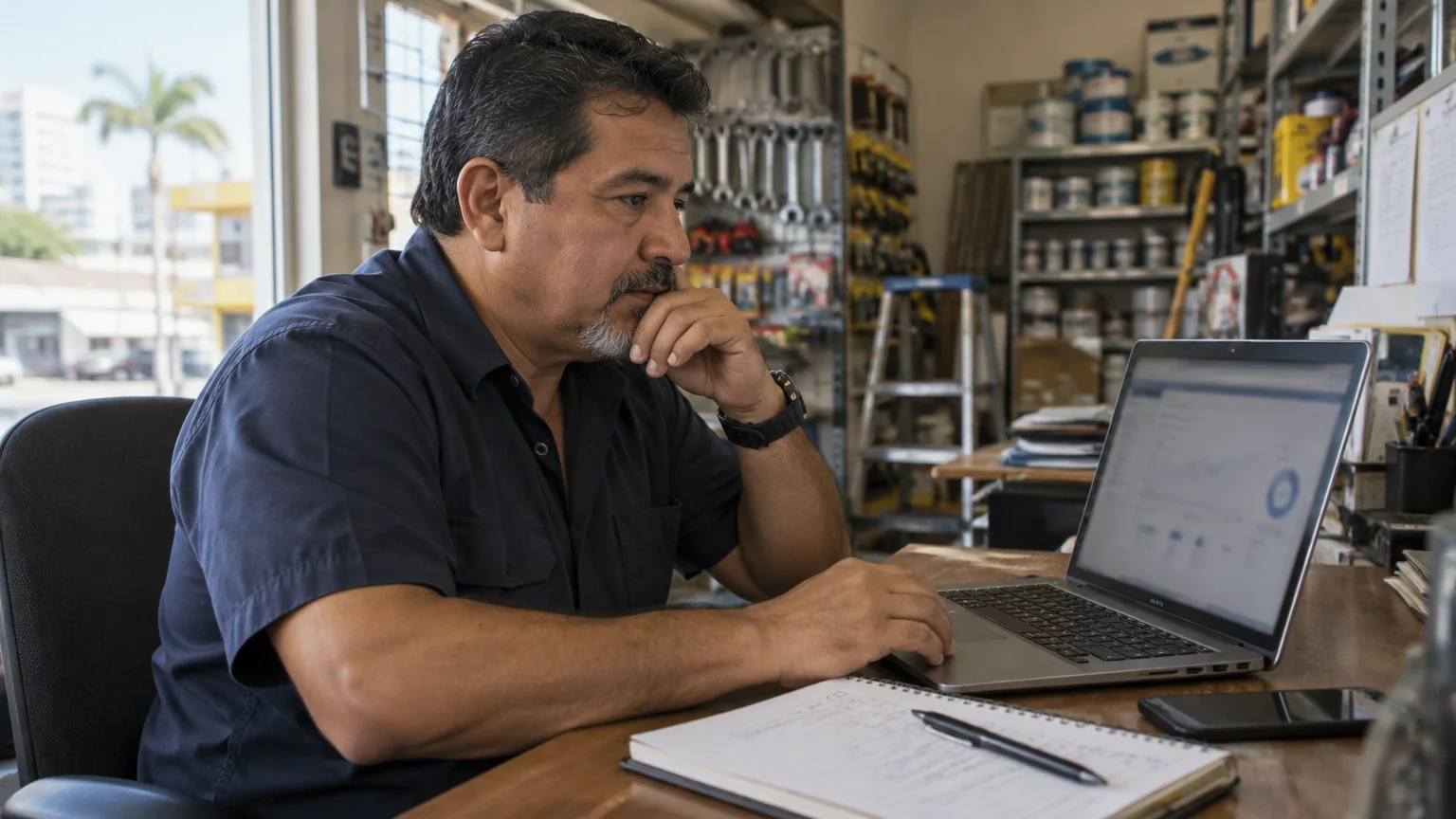

Picture this: it's Monday morning and the owner of a hardware store in La Chorrera opens his WordPress site to a blank white screen, an error message and not a single weekend order in his inbox. Nobody has touched it in months, and that's exactly the problem. It's gone almost a year without updates, an old plugin stopped being compatible with the PHP version the hosting provider changed on its own, and there's no recent backup.
Situations like this are more common than you'd think, and they can almost always be prevented with simple habits. You don't need to know how to code to keep your WordPress website secure, fast and up to date. You need a routine, to know where to look and to be clear on when it's time to ask for help. This 2026 guide is meant for business owners who manage their own site, or who want to understand what whoever maintains it does (or should be doing).
Why your WordPress website needs maintenance
WordPress is software, and software ages. Your site is made up of the WordPress core, a theme, several plugins and the server it lives on. Each of those pieces gets its own updates: some fix security flaws, others add features and others adapt to new server versions. When a lot of time goes by without maintenance, those pieces stop fitting together.
It's worth being clear from the start: no maintenance guarantees your site will never fail. Servers have problems, plugins release versions with bugs, and sometimes new vulnerabilities appear before a patch exists. What good maintenance does achieve is fewer problems, faster detection and, if something breaks, the ability to roll back in minutes instead of days.
Updates: why to do them and how often
Updates are your first line of defense. A large share of the sites that get compromised had outdated plugins or themes with flaws that were already known and fixed. In practice, updating means closing doors that others already know how to open.
What to update
- WordPress core. Minor versions, which are usually security releases, install on their own on most sites. Major versions are best applied after you have a backup.
- Plugins. They're the most common source of problems, both from not updating them and from updating them without checking.
- Theme. If you use a child theme, your customizations are kept when you update the parent theme.
- Server PHP. You change it from your hosting control panel. Old versions stop getting patches and are slower, too.
How often
For a typical business site, checking for updates once a week is a reasonable pace, and applying right away the ones the developer flags as security updates. If your site sells online or gets a lot of bookings, don't blindly update everything on a Friday afternoon: make a backup first, update during a slow time and check that the cart, forms and payments still work.
In our experience, the most common mistake isn't forgetting to update, but updating twenty plugins at once without a backup first. If something fails, you don't know which one caused it. Update in small batches and check the website in between.
Backups: your insurance against almost everything
A backup is the difference between a bad moment and a real loss. If a plugin breaks the site, if someone deletes a page by mistake or if you get infected, a recent backup lets you go back to how things were. Without a backup, you have to rebuild.
Three practical rules we always recommend. First: the backup should include both files and the database, because one without the other isn't much use. Second: it should be stored off the server where your website lives, for example in Google Drive, Dropbox or external storage; if the server fails, any backups stored there are lost too. Third: check every so often that the backup can actually be restored. A backup that's never been tested is a hope, not a safety net.
How often depends on how much your site changes. An informational website you update a couple of times a month can do fine with weekly backups. A store or a booking site needs daily database backups, because every new order lives there.
Plugins: less is more
Every plugin you install is someone else's code running on your site. Some are very well maintained and others have been abandoned for years. The more plugins you have, the more updates to keep an eye on, the more chances of conflicts and, often, the slower your website gets.
A quick review you can do today: go to your Plugins list and ask yourself, one by one, whether you really use each one. It's common to find deactivated plugins that are still installed, two plugins that do the same thing or tools that were installed for a promotion three years ago. Deactivate and delete the ones you don't use; a deactivated plugin still takes up space and can still be a way in if it has flaws.
Licenses always in your name
Many premium plugins and themes run on annual licenses. Here's something we often see go wrong: the license ends up in the name of the designer or agency that built the site. When that relationship ends, the license expires, the plugin stops getting updates and nobody notices until something breaks. Ask for all licenses, the domain and the hosting to be registered with your email and in your name. That way your website is truly yours, no matter who you work with. At CreatixNova this is our standard practice, even in our Do It Yourself service, where we leave the foundation ready and teach you how to manage it.
Basic security without the hassle
Most attacks on small sites aren't personal. They're automated programs that crawl the internet trying weak passwords and known flaws. With a few basic measures, you're no longer an easy target.
Passwords and two-factor authentication
Use long, unique passwords for your WordPress admin, your hosting and your email. A password manager saves you from having to remember them. Also, turn on two-factor authentication in WordPress and in your hosting: even if someone guesses your password, they can't get in without the code on your phone. It's probably the measure with the best balance of effort and protection.
Access and users
Check who has an account on your site under Users. It's common to find administrator accounts belonging to a freelancer from years ago, an employee who no longer works with you or someone who logged in “just for one change.” Each person should have their own account with the lowest role they need: someone who only publishes on the blog doesn't need to be an administrator. And never share your main login over WhatsApp; if someone needs access, create an account for them and delete it when they're done.
The SSL certificate and your hosting
Your site should load with https and the padlock in the browser. Today almost every hosting provider includes the certificate at no cost, but sometimes it doesn't renew on its own or some pages still load unencrypted resources. Good hosting also helps with firewalls, scans and server-side backups.
Speed: what matters most
A slow website loses visitors, especially on phones and mobile data. The good news is that a big part of your speed depends on just a few things.
- Images. This is the number one cause we find. Photos uploaded straight from a phone or camera, several megabytes each. Shrink them before uploading and use modern formats like WebP.
- Caching. A well-configured caching plugin, or the caching your hosting offers, stores ready-made versions of your pages so they don't have to be generated every time.
- Hosting. The cheapest plan usually shares resources with hundreds of sites. If your business depends on its website, quality hosting pays for itself.
- Plugins and effects. Heavy carousels, animations everywhere and plugins that load code on every page add up to seconds.
To measure, you can use Google's PageSpeed Insights. Don't obsess over getting a perfect score; pay attention to whether the page feels fast on your phone and to the specific recommendations the tool gives you.
Monthly WordPress maintenance checklist
If you want to do it yourself, this table sums up a realistic routine. You can print it or add it to your calendar.
| Task | Frequency | Can you do it yourself? |
|---|---|---|
| Review and apply updates, with a backup first | Weekly | Yes, carefully |
| Confirm that backups are being created | Weekly | Yes |
| Send a test from each contact form | Monthly | Yes |
| Review users and remove access that's no longer used | Monthly | Yes |
| Delete plugins and themes you don't use | Monthly | Yes |
| Measure speed in PageSpeed Insights | Monthly | Yes |
| Test restoring a backup | Quarterly | Better with technical support |
| Check the PHP version and plugin compatibility | Quarterly | Better with technical support |
| Check expiration dates for your domain, hosting and licenses | Quarterly | Yes |
Warning signs you shouldn't ignore
Some symptoms mean something is wrong, even if the site still loads. If you notice any of these, act quickly instead of waiting to see if it fixes itself.
- Administrator users you didn't create show up.
- Google shows strange titles in the results, in another language or for products you don't sell.
- Your customers say the website redirects them to another page or they get a dangerous-site warning.
- Form submissions stopped coming in and nobody had noticed.
- The site has gotten much slower without you changing anything.
- Your hosting provider sends you notices about excessive resource usage or suspicious files.
What you can do yourself and when preventive support makes sense
With what you've read here, you can cover a good part of the maintenance: updating in an orderly way, keeping an eye on backups, cleaning up plugins, taking care of passwords and access, and optimizing images. Many business owners do it and it works out well for them, especially when the site is informational and they have half an hour a week to spend on it.
There are cases where, honestly, it pays to hand it off. If your website sells online or takes bookings, if it depends on licensed plugins and delicate settings, or if you'd simply rather spend that time on your business, a preventive support service takes care of tested updates, verified backups, monitoring and a quick response when something fails. The difference from calling someone once everything is already down is that the problem gets handled before your customers see it.
Frequently asked questions
Can I turn on automatic updates for all my plugins?
You can, and for simple, highly reliable plugins it usually works well. For critical plugins like your store, payments, forms or page builder, it's better to update them manually and check the site afterward, always with a recent backup.
If my hosting already makes backups, do I need others?
It's a good idea. Hosting backups are usually stored with the same provider and sometimes only cover a few days. Having an extra backup in external storage protects you if the problem is with the hosting itself.
How many plugins are too many?
There's no magic number. Quality matters more than quantity: a site with fifteen well-maintained plugins can run better than one with five abandoned ones. The useful question is whether each plugin does a job you truly need.
Does a security plugin do all the work?
It helps, but it doesn't replace the basics. If your passwords are weak, two-factor authentication isn't turned on or your plugins are out of date, the security plugin has little room to work. Think of it as one more layer, not the complete solution.
What do I do if my site has already been hacked?
Change your WordPress, hosting and email passwords right away, let your hosting provider know and don't delete files at random. The safest move is to get technical support to clean up the site, close the vulnerability that was used to get in and restore from a clean backup.
Your website, in order and in your name
Keeping WordPress up to date isn't a mystery, but it does take consistency. If you'd rather have someone review it with you and tell you where your site stands today, ask for your free consultation. We'll tell you clearly what you can handle yourself and what's better left to a support service, no strings attached.